

Find the one file in a client delivery, without unpacking the rest.
Clients send brand assets, photo libraries and project handovers as one large zip or 7z. Kutio opens the archive like a Finder window, so you can look around, preview a file and drag out exactly what you came for.
Where it goes wrong today
The delivery arrives as a single archive, often several gigabytes. You need one logo, one layout or one spreadsheet from it. Most Mac archivers only know one move: unpack everything into a folder, wait, then dig through the result and delete what you did not need. When the archive is a 7z, the extra step of finding something that opens it comes first.
How Kutio handles it
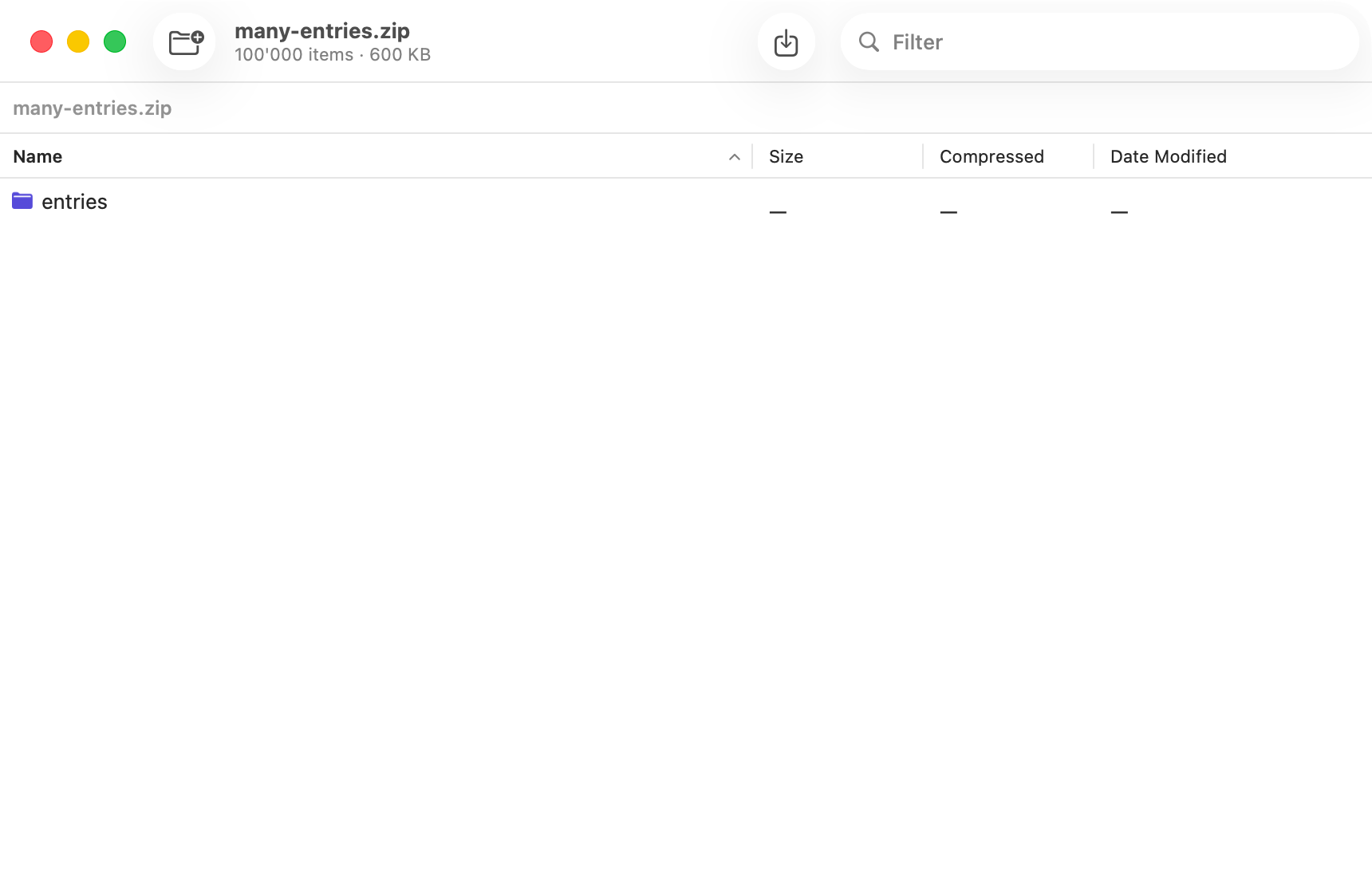
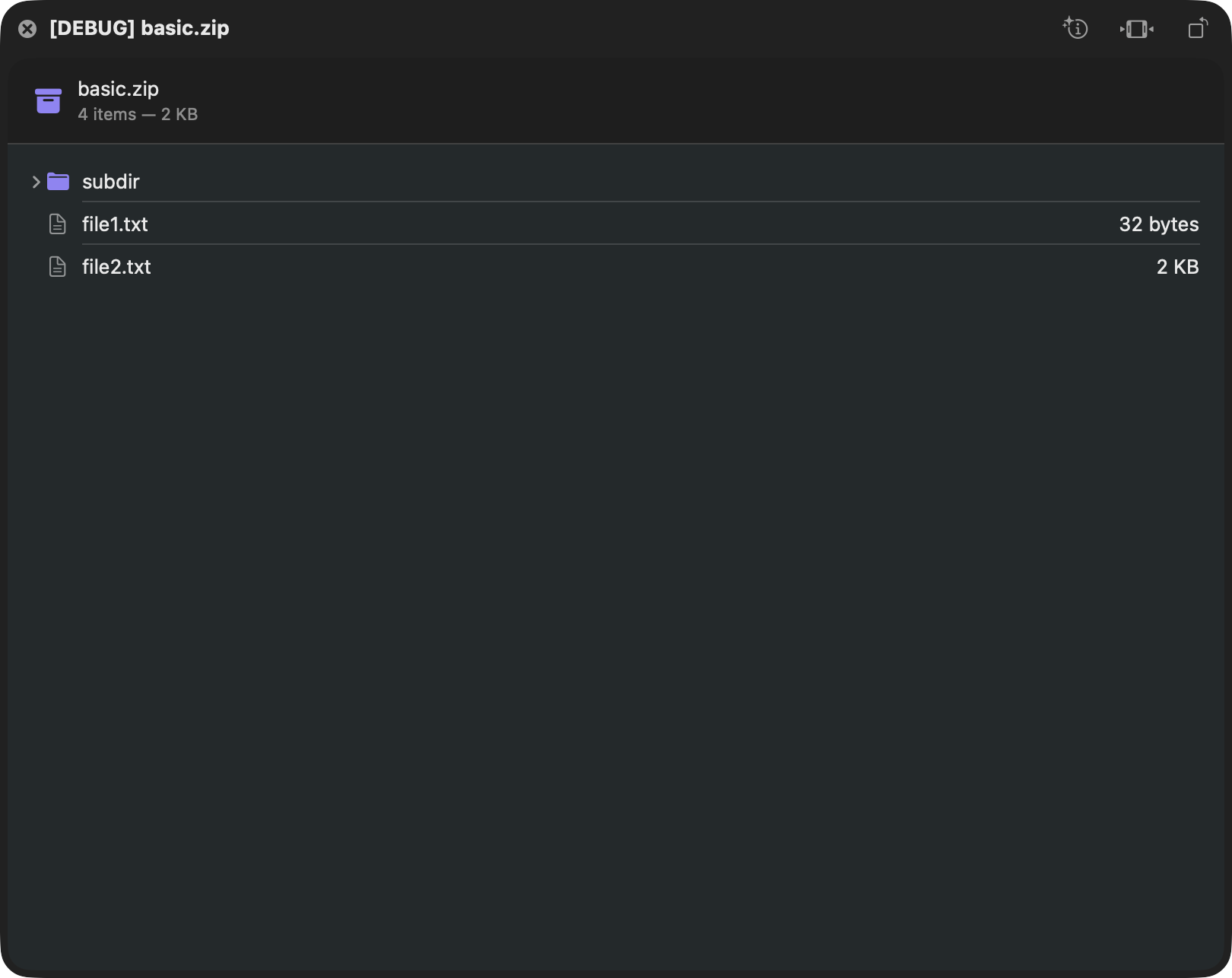
Open the archive in Kutio and it appears as a file listing, with folders you can open, columns you can sort and a filter field for searching by name. Nothing is extracted until you ask for it.
Select a file and Quick Look shows it in place, so you can check that it is the right version before you take it out. In Finder you can also press Space on the archive itself, and its contents show up in the standard Quick Look panel without opening Kutio.
When you have found the file, drag it from the archive to the Finder, a folder or another app. The rest of the archive stays where it is. Kutio opens zip, 7z, tar and its compressed variants, and extracts rar, so most deliveries need no second tool. Opening, browsing, previewing and extracting are free.
What stays the same
The archive file itself is never changed by browsing or extracting. Everything runs on your Mac, and the delivery is not uploaded anywhere. If you do want the whole archive, extract it in one step as you always have.

Questions people ask
What is Kutio?
Kutio is a native Mac app for opening, browsing and creating archives: zip, 7z, tar and its compressed variants, and rar. It shows an archive’s contents the way Finder shows a folder, before you extract anything.
Which formats does Kutio support?
Zip, 7z, tar, tar.gz, tar.xz, tar.zst, gzip, bzip2, xz, Zstandard, LZ4 and RAR. The formats table on this page shows exactly which of those Kutio can also create, since not every format that opens can be created.
What’s free, and what needs Kutio Pro?
Opening, browsing, previewing, extracting and verifying archives are free forever, with no limits and no trial period. Kutio Pro adds creating new archives, editing an existing archive’s contents, AES-256 encryption and splitting into multiple volumes.
Other people who use it
Developers
Browse tar variants and nested archives, read entry details and verify integrity, from Finder or the app.
Privacy-conscious professionals
Open and protect sensitive archives locally: no upload, no account, sandboxed, AES-256 with Pro.
Look inside any archive before you extract it.


Coming soon to the Mac App Store
Free to open, browse, preview and extract. No account required.
Pricing details and purchase questions