

Inspect a tarball before you unpack it.
Release artifacts, build outputs and backups arrive as tar.gz, tar.xz, tar.zst or an archive inside an archive. Kutio lists what is inside, shows an entry’s details, and verifies the archive against its stored checksums.
Where it goes wrong today
An artifact lands as a .tar.zst or .tar.xz, and Finder shows nothing but a file. To check what is in it you unpack it, or you reach for the terminal and remember the flags for that particular compression. If the archive contains another archive, you do it again. After a long download you also want to know the file is intact before you build on it.
How Kutio handles it
Kutio opens zip, 7z, tar, tar.gz, tar.xz, tar.bz2, tar.zst and the single-file gzip, bzip2, xz, Zstandard and LZ4 formats. The contents appear as a sortable, searchable listing, and an archive nested inside another opens the same way, with nothing written to disk.
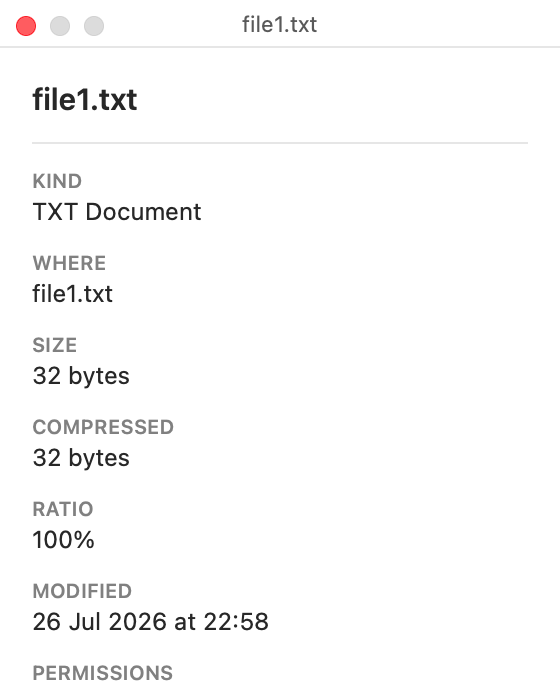
Select an entry and the inspector shows its size, dates, permissions and a checksum, next to a Quick Look preview. Verify an archive against the checksums stored inside it before you trust it. Verification is free.
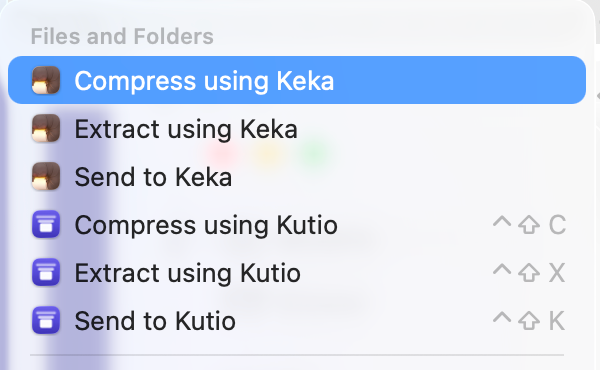
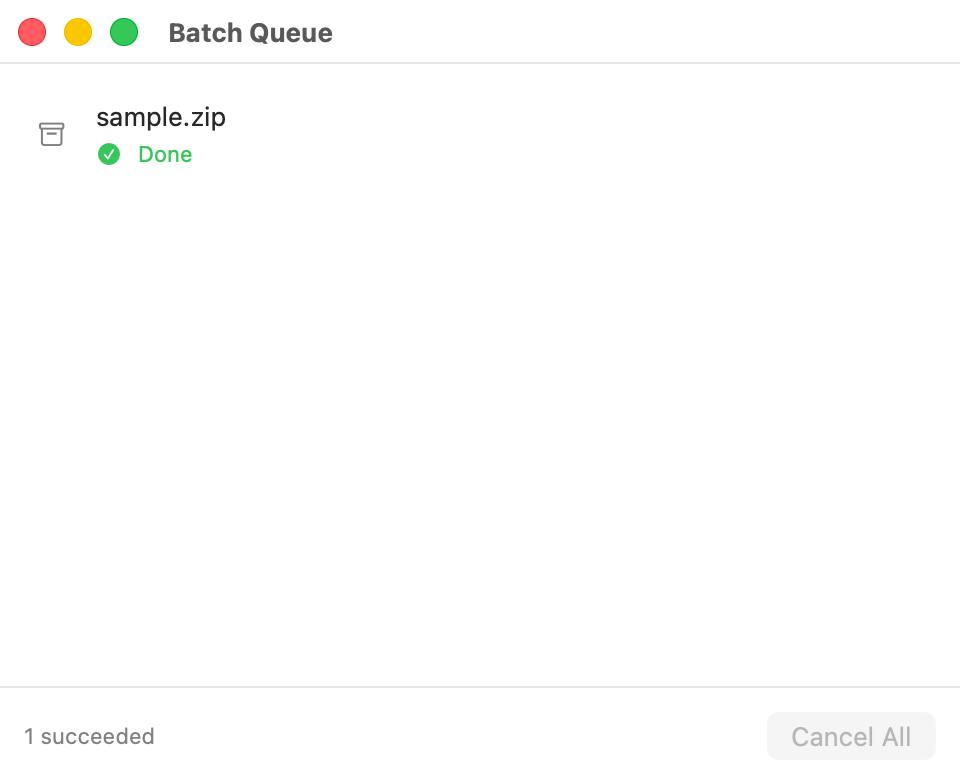
Kutio also adds Extract and Compress to Finder’s right-click menu and to the Services menu, so you can start an operation from where you already are. Every operation reports into one batch queue. With Kutio Pro you can create Zip, 7z, tar, tar.gz, tar.xz and tar.zst archives and edit existing ones in place.
What stays the same
Opening, browsing, previewing, extracting and verifying stay free, with no file-size cap and no account. Kutio only touches the files you open or drop onto it, and your archives are not uploaded.
Questions people ask
Which formats does Kutio support?
Zip, 7z, tar, tar.gz, tar.xz, tar.zst, gzip, bzip2, xz, Zstandard, LZ4 and RAR. The formats table on this page shows exactly which of those Kutio can also create, since not every format that opens can be created.
Is it safe to edit an archive in Kutio? What if the app crashes mid-edit?
Every edit to an existing archive is written to a copy first and only swapped in once it finishes successfully. If Kutio is force-quit or the Mac loses power partway through an edit, the original archive is left exactly as it was, byte for byte.
What’s free, and what needs Kutio Pro?
Opening, browsing, previewing, extracting and verifying archives are free forever, with no limits and no trial period. Kutio Pro adds creating new archives, editing an existing archive’s contents, AES-256 encryption and splitting into multiple volumes.
Other people who use it
Designers and agencies
Browse a client’s large zip or 7z, preview files and drag out just the one you need.
Privacy-conscious professionals
Open and protect sensitive archives locally: no upload, no account, sandboxed, AES-256 with Pro.
Look inside any archive before you extract it.


Coming soon to the Mac App Store
Free to open, browse, preview and extract. No account required.
Pricing details and purchase questions