
How to look inside a zip file on a Mac without extracting it
Double-clicking a zip on a Mac unpacks all of it. To see what is inside first, open it in Kutio, or press Space on it in Finder. This guide covers both.
Before you start
You need Kutio, from the Mac App Store. Browsing, previewing and extracting are free, with no account.
1. Peek from Finder with Space
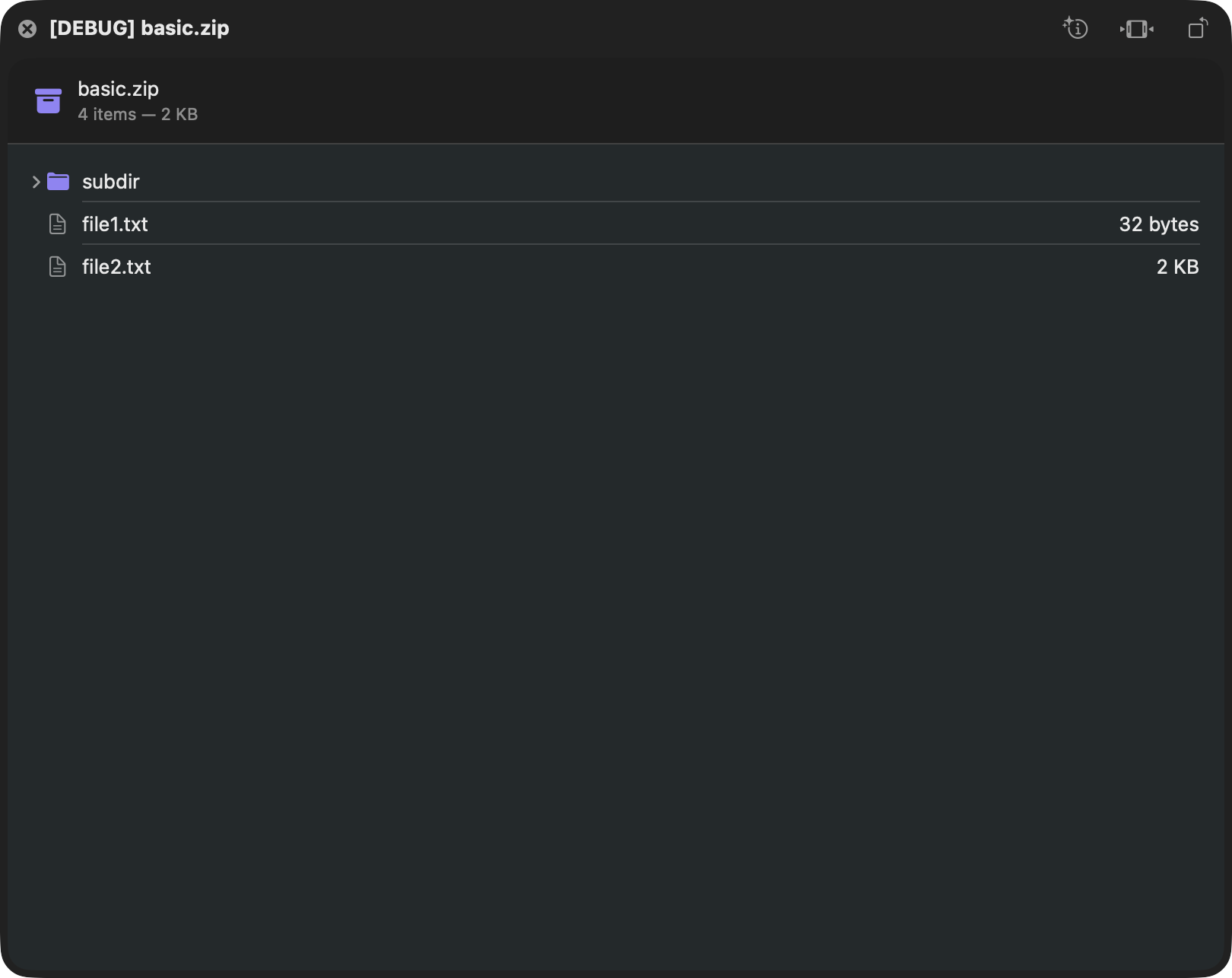
Select the zip in Finder and press Space. The standard Quick Look panel shows the archive’s contents, and Kutio does not need to be open. Use this when you only want to know what is in the file.
2. Open it in Kutio
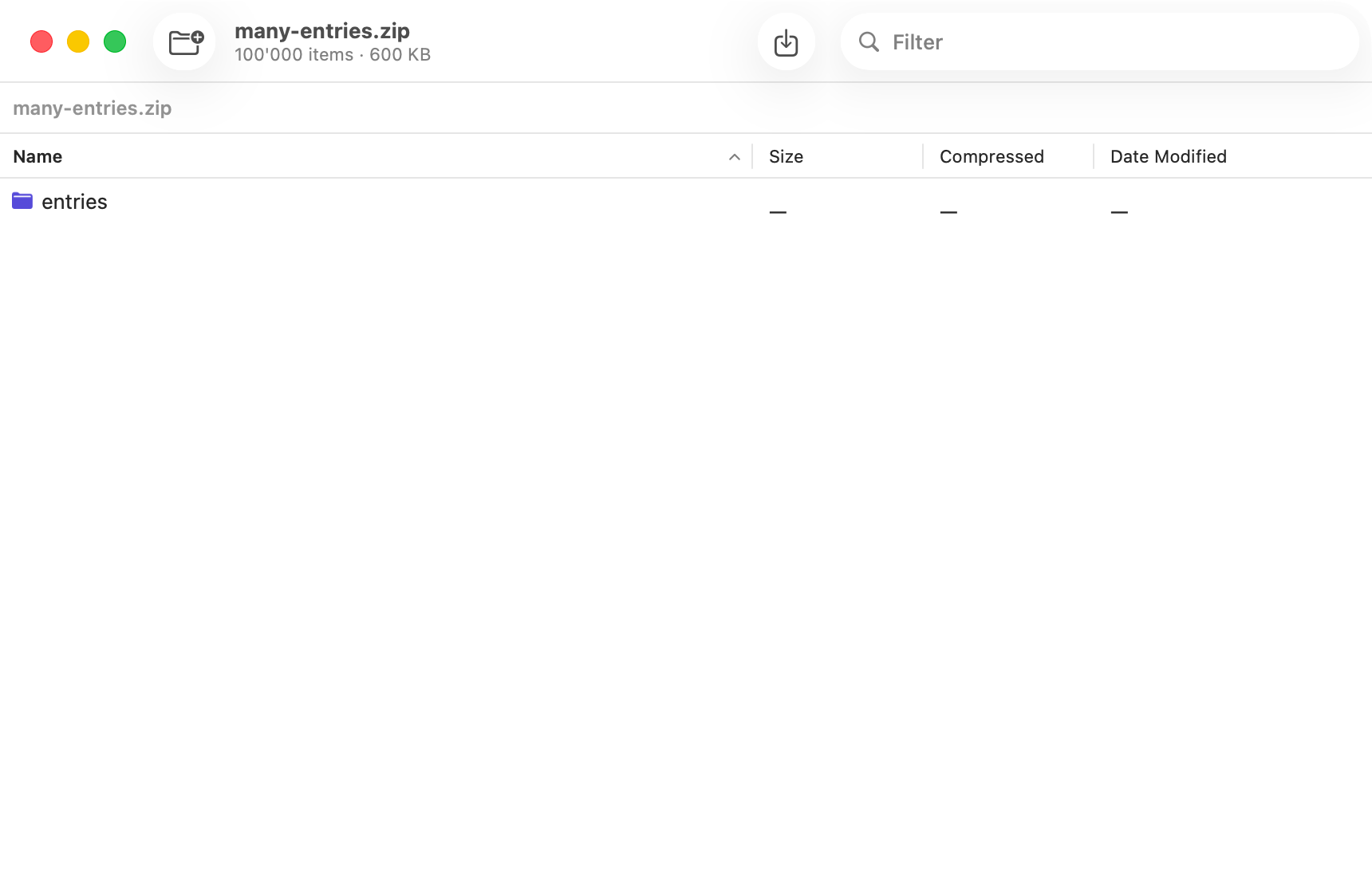
For a closer look, drag the zip onto Kutio or open it from the Finder’s right-click menu. The archive appears as a listing with name, size, compressed size and date columns.
3. Browse and search
Open folders, sort by any column and type in the filter field to find a file by name. Archives nested inside the zip open the same way. Nothing is extracted while you do this.
4. Preview a file and check its details
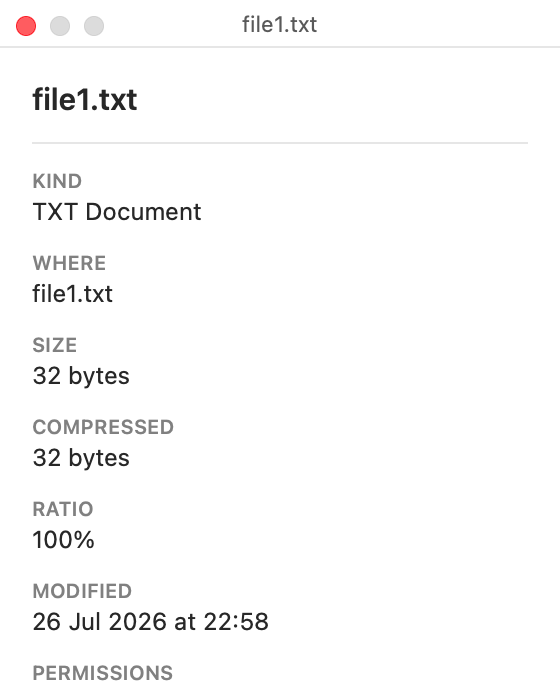
Select a file to see it in Quick Look. The inspector shows its size, dates and permissions, and a checksum.
5. Drag out the file you need
Drag the file or folder from the listing to the Finder, a folder or another app. Only that item is extracted, and the rest of the zip stays untouched. If you want everything, choose Extract instead.

More guides
How to open a RAR file on a Mac
Open a RAR archive, preview its files and extract only the one you need.
Look inside any archive before you extract it.


Coming soon to the Mac App Store
Free to open, browse, preview and extract. No account required.
Pricing details and purchase questions